
Expense management in Slate
Take a photo of a receipt or upload a PDF. AI reads the supplier, the date, the amount and the VAT, and suggests a category. Check it and save, and the expense is already in the VAT report, the profit and loss report and the advance payment calculation. At the end of the month your accountant downloads every receipt in one file.
Open a free account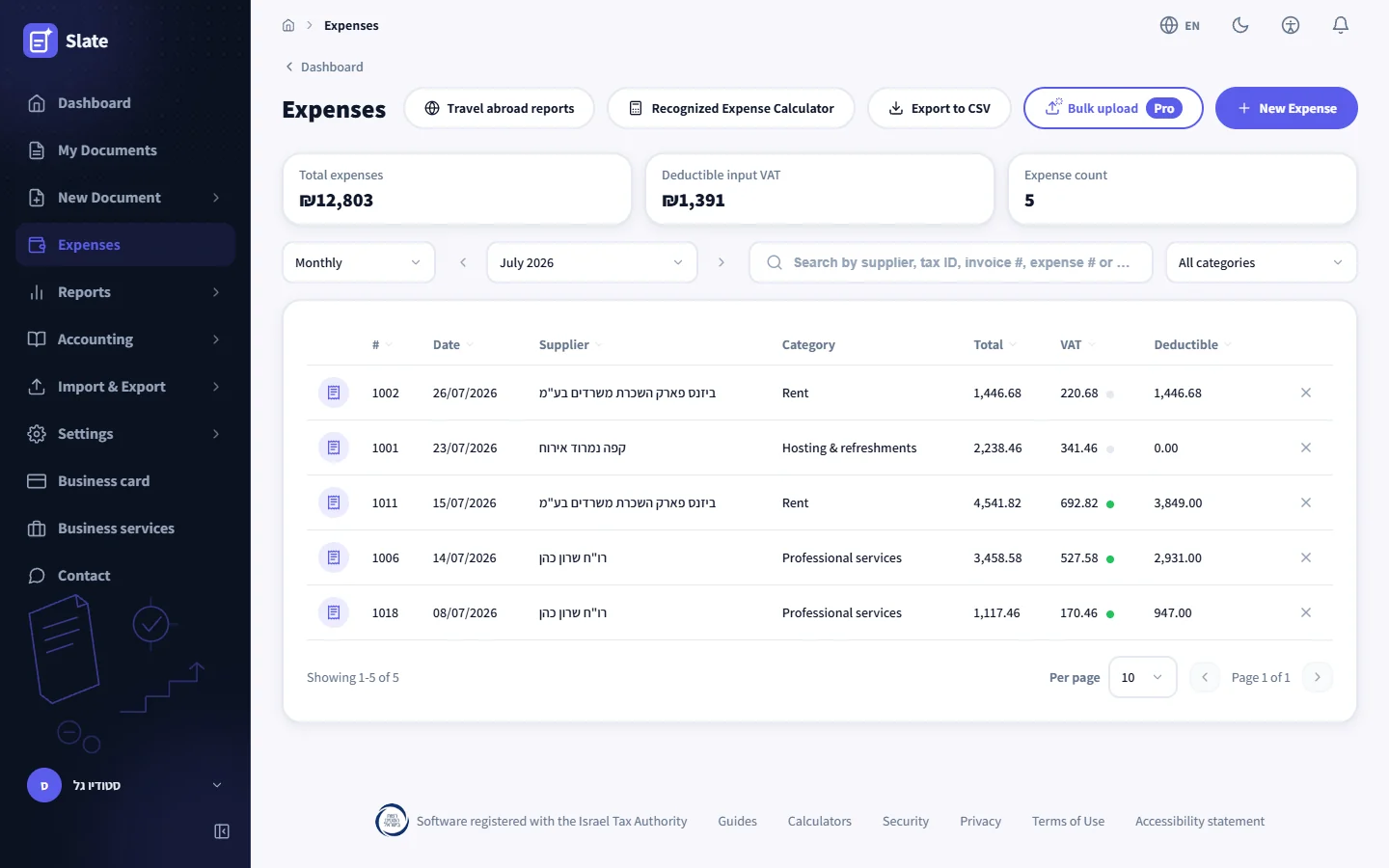
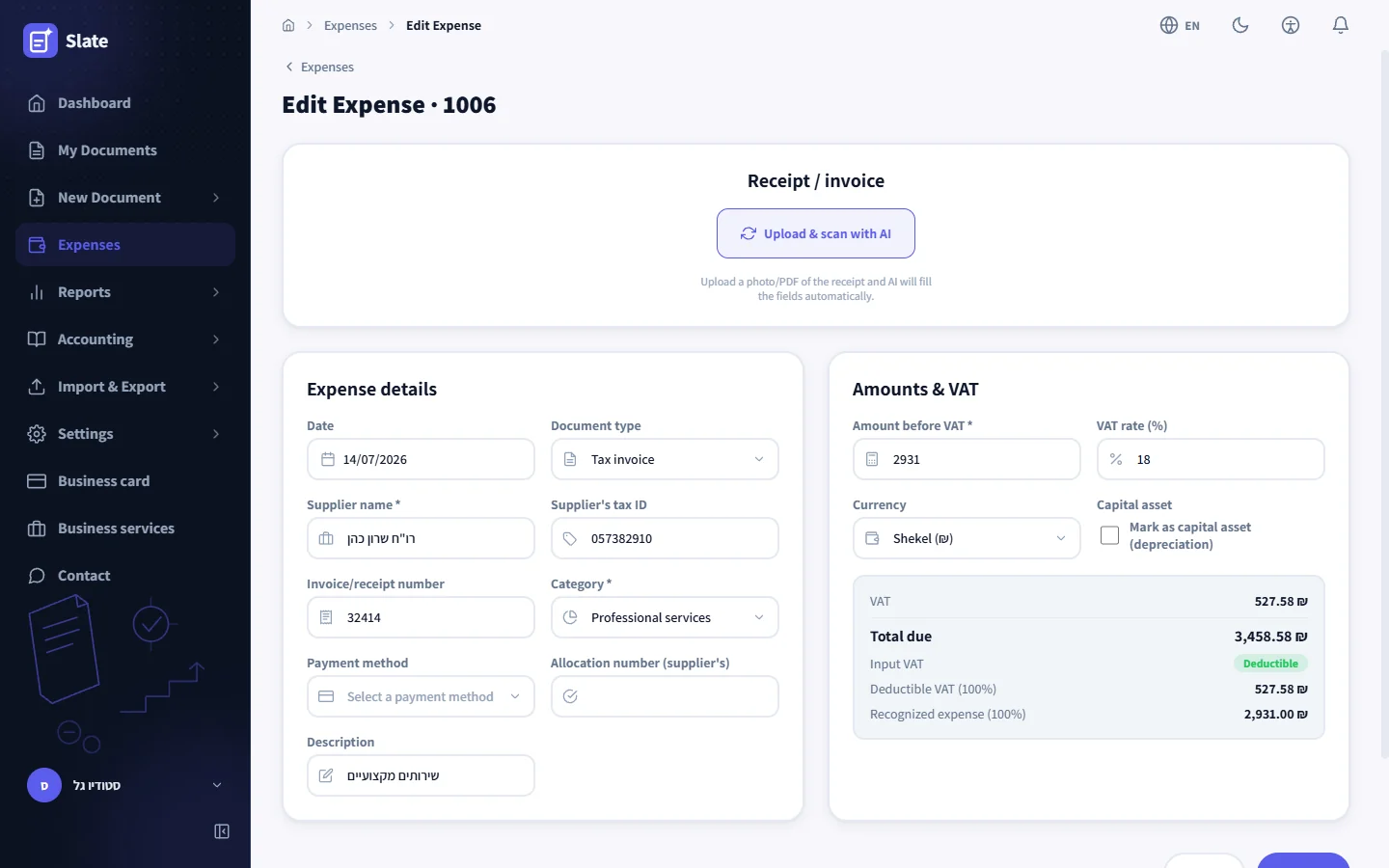
A photo of the receipt, a filled form
Take a photo of the receipt or upload a PDF. AI reads the supplier name, their tax ID, the document number, the date, the amounts, the currency and the allocation number, and suggests a category. Every field stays open for correction, and nothing is saved until you press save. The bottom of the form shows right away how much VAT you can offset and how much of the expense is recognized for tax.
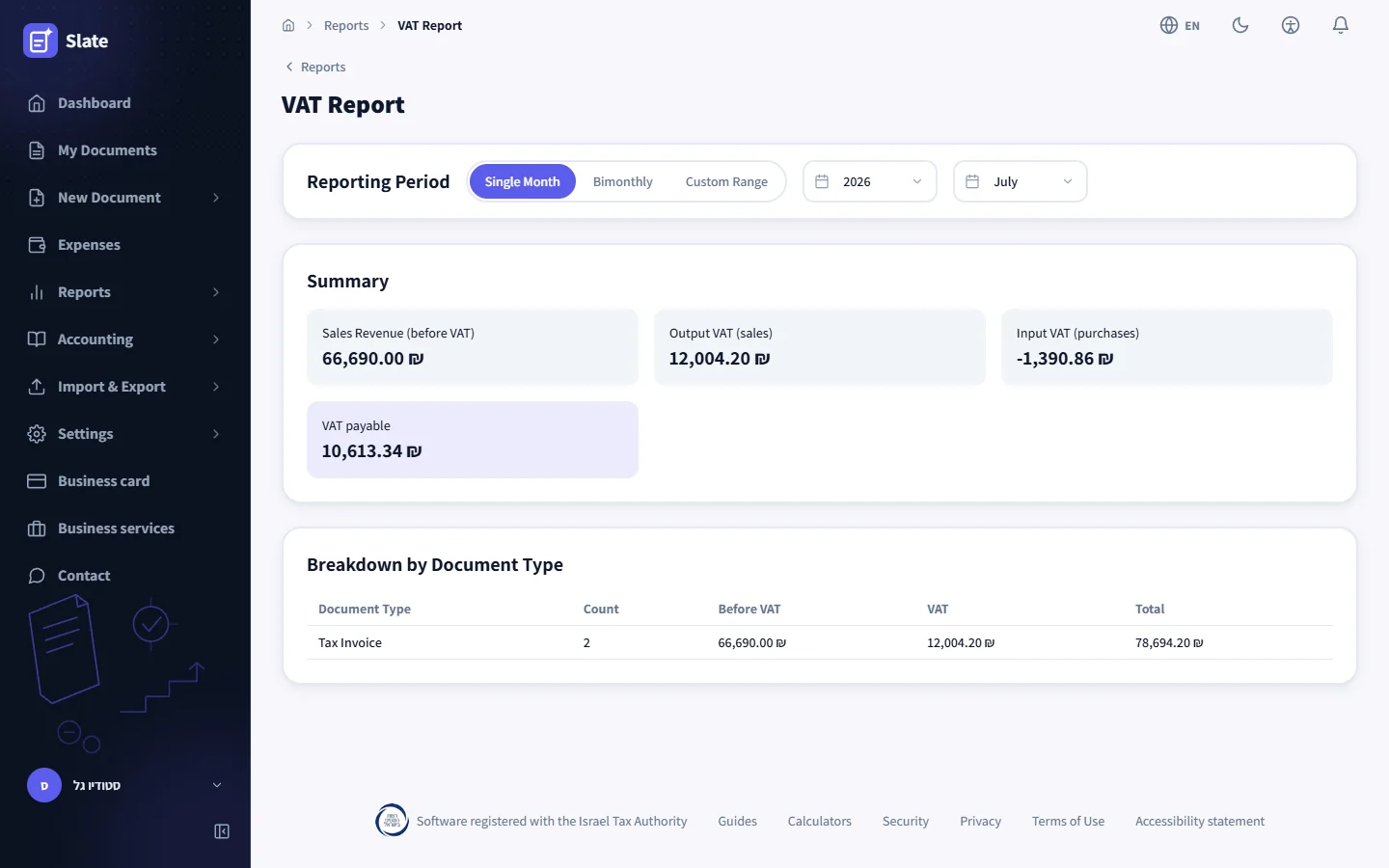
Expenses are already in the reports
The detailed VAT report, the VAT filing file, the profit and loss report and the advance payment calculation all read the expenses you recorded. The month’s input VAT comes off the output VAT without copying amounts from one table to another.
-
A month of receipts in one upload
Drag in up to 30 receipts at once. Each one becomes a row with a supplier, an amount and a category, and you go through them row by row before approving.
-
What counts for tax and what VAT comes back
Every category has a tax recognition rate and a VAT offset rate. Fuel and a car offset two thirds of the VAT, and bank fees, salaries and insurance are recorded with no VAT at all.
-
The rate of the day you recorded it
An expense keeps the recognition rate and the offset rate that applied on the day it was recorded. When the rules change, a report you already filed stays as it was.
-
Your accountant downloads it all
An accountant connected to the business sees the expense list and a report by category, and downloads every receipt of the period in one file, up to 300 receipts.
-
An expense in dollars or euros
Record the amount in its original currency, and that day’s official rate is saved on the expense. A trip abroad goes to the travel report, which applies the income-tax caps.
-
10 expenses a month for free
The free plan records up to 10 expenses a month. Pro has no limit and adds receipt scanning and bulk upload.
An expense without a receipt
A payment with no document, like a fee taken from the bank account, is recorded with a no-document mark. It goes into profit and loss, and no VAT is offset on it. Which expenses are recognized and at what rate is covered in the guide to deductible expenses, and a car and a home office have guides of their own: vehicle expenses and home office.
Where the receipt image is kept
In private storage, attached to the expense. Only the business owner and the accountant they connected can open it. What VAT can and cannot be offset is explained in the input VAT guide.
The screenshots on this page come from the Studio Gal demo account, with sample expenses from July 2026.
A receipt goes in, the VAT report updates
No folder of receipts for the accountant and no spreadsheet to copy into the report. Every expense is recorded once, with its receipt, and the totals are waiting in the reports when the filing date comes.
Open a free account